...
For continuous compliance monitoring, Unimus supports Automatic Preset Execution. When enabled (by toggling “Automatic execution” within a preset) Unimus automatically validates new sources for all targeted devices as soon as they are created. This keeps compliance results up to date without requiring manual execution.
Compliance evaluation levels
The Compliance engine evaluates compliance across several levels. Each evaluation level produces its own Compliance result. For the full evaluation logic, see <Compliance evaluation logic wiki link>the Compliance Evaluation Logic article.
|
|---|
Evaluation level | What It Represents | Scope | |
|---|---|---|---|
Preset-level | Preset Status | Result of evaluating an entire Compliance preset across all its target devices. | All devices targeted, one preset |
Preset-level | Rule Status | Result of evaluating one Compliance rule across all target devices in a preset. | All targeted devices, one rule |
Preset-level | Condition Status | Result of evaluating one Compliance condition across all target devices in a preset. | All targeted devices, one condition |
Device-level | Device Compliance Status | Overall compliance status of a device across all Compliance presets. | One device, all presets |
Device-level | Device Preset Result | Evaluation of all rules within a preset for one specific device. | One device, one preset |
Device-level | Device Rule Result | Evaluation of all conditions in a rule for one specific device. | One device, one rule |
Device-level | Device Condition Result | Evaluation of a single condition on a single device. | One device, one condition |
Viewing Compliance results
...
Device Condition Result – After opening a preset, choose Show preset results, select a device, click Show details, and use Expand all to display all condition results.
Alternatively, open a preset and use Show condition results for a specific condition.
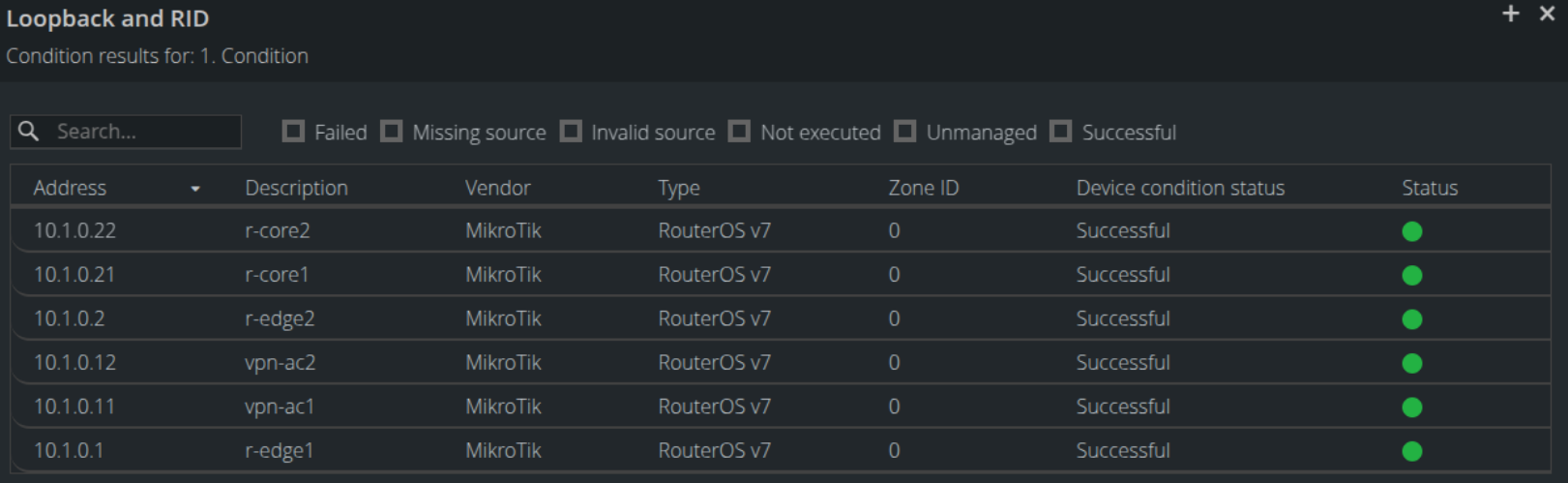
The device compliance status indicator is color-coded for fast identification:
...