...
The Compliance Reporting feature automatically validates whether network device configurations and/or their runtime states conform to operational policies. The Compliance Engine analyzes the latest configuration backups and or Mass config push/pull outputs against user-defined rules and flags any deviations. Compliance checks in Unimus are organized into Compliance presets.
...
Source – the dataset against which compliance is validated.
Targets – the devices validated by the preset.
Compliance Rules – the logic that defines compliance criteria.
Targets – the devices validated by the preset.
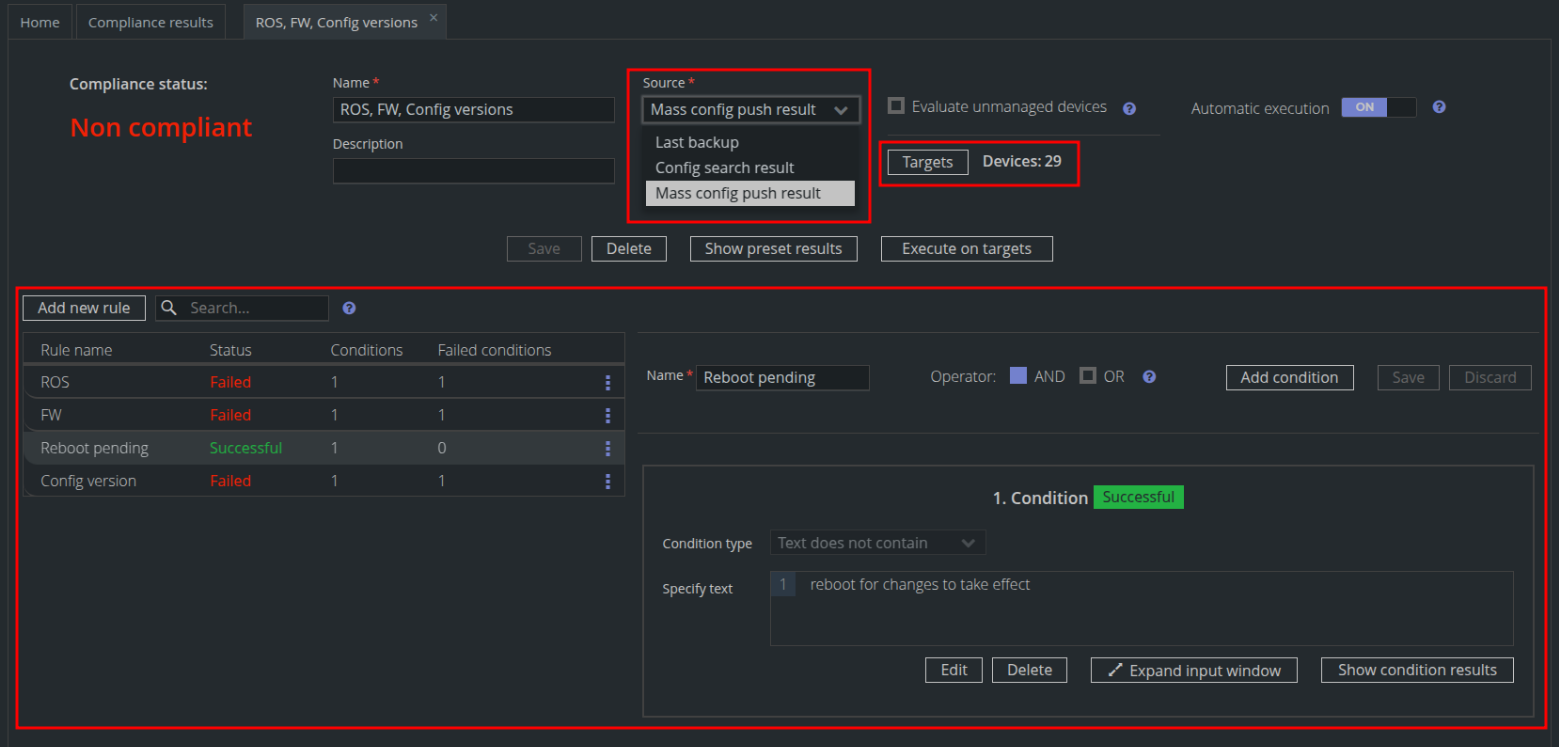
This structure allows you to define what is checked, how it is checked, and on which devices.
Compliance source
The source Source determines which data the Compliance Engine validates against your rules. You can choose from:
Last Backup – validates against the most recent configuration backup of devices.
Config search result – validates the latest configurations configuration of devices matched returned by a Saved search.
Mass config push result – validates device output produced by executing an MCP preset.
...
Targets are the devices whose compliance state you want to monitor. The selected preset data source affects how the targets are determined.
...
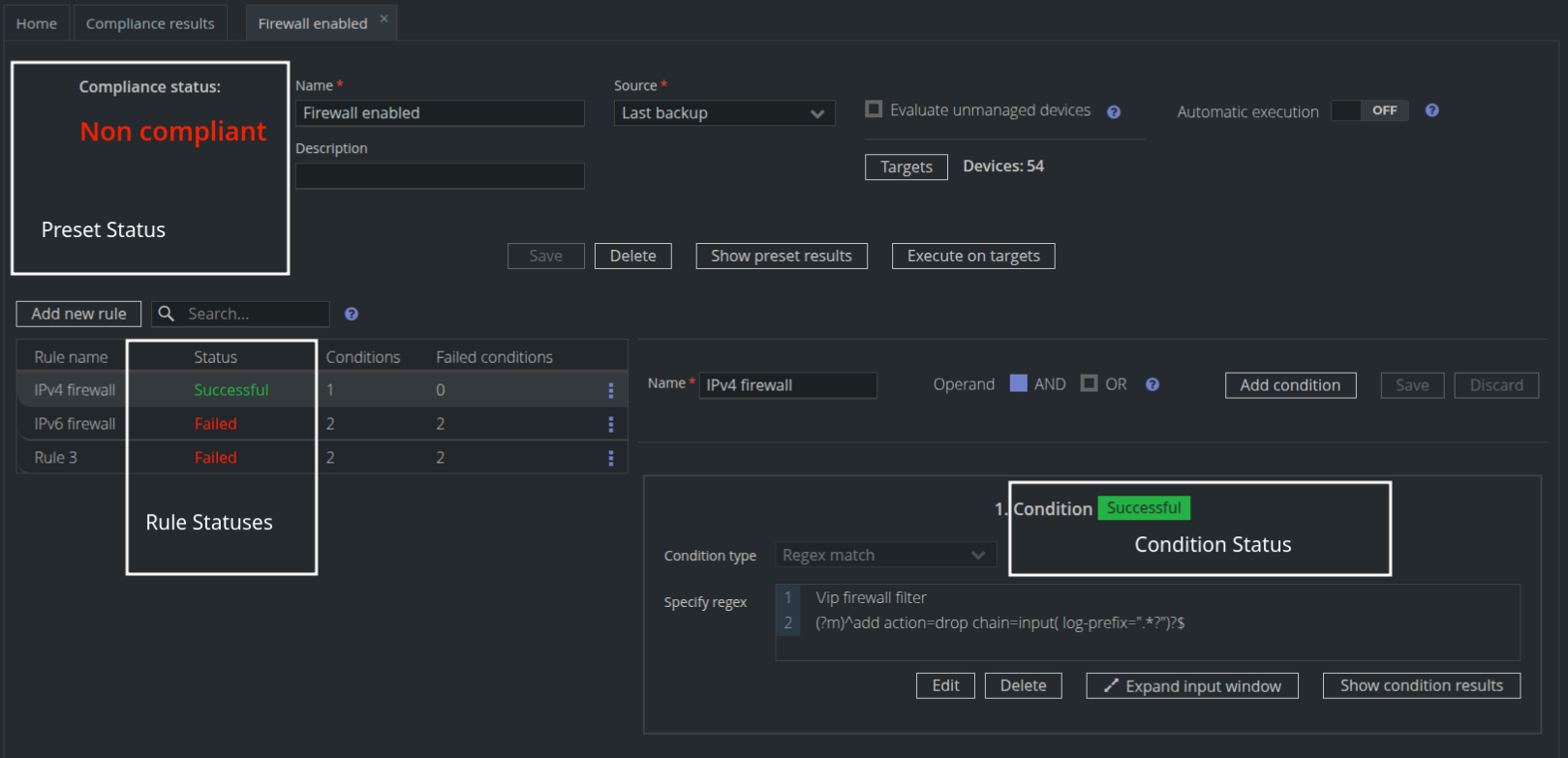
Preset Status – Visible on the Compliance Home screen for each preset. Also shown in the preset detail view after opening a preset.
Rule Status – After opening a preset from the Compliance Home, displayed in the table of rules.
Condition Status – After opening a preset, displayed in the list of conditions next to each condition.
Device Compliance Status – Shown in the Compliance column (Compliance status indicator) for each device in the Devices list.
The device compliance status indicator is color-coded for fast identification:
Green: device is fully compliant
Red: device is non-compliant
Yellow: source dataset is missing or invalid
Grey: device is unmanaged or hasn’t been validated yet

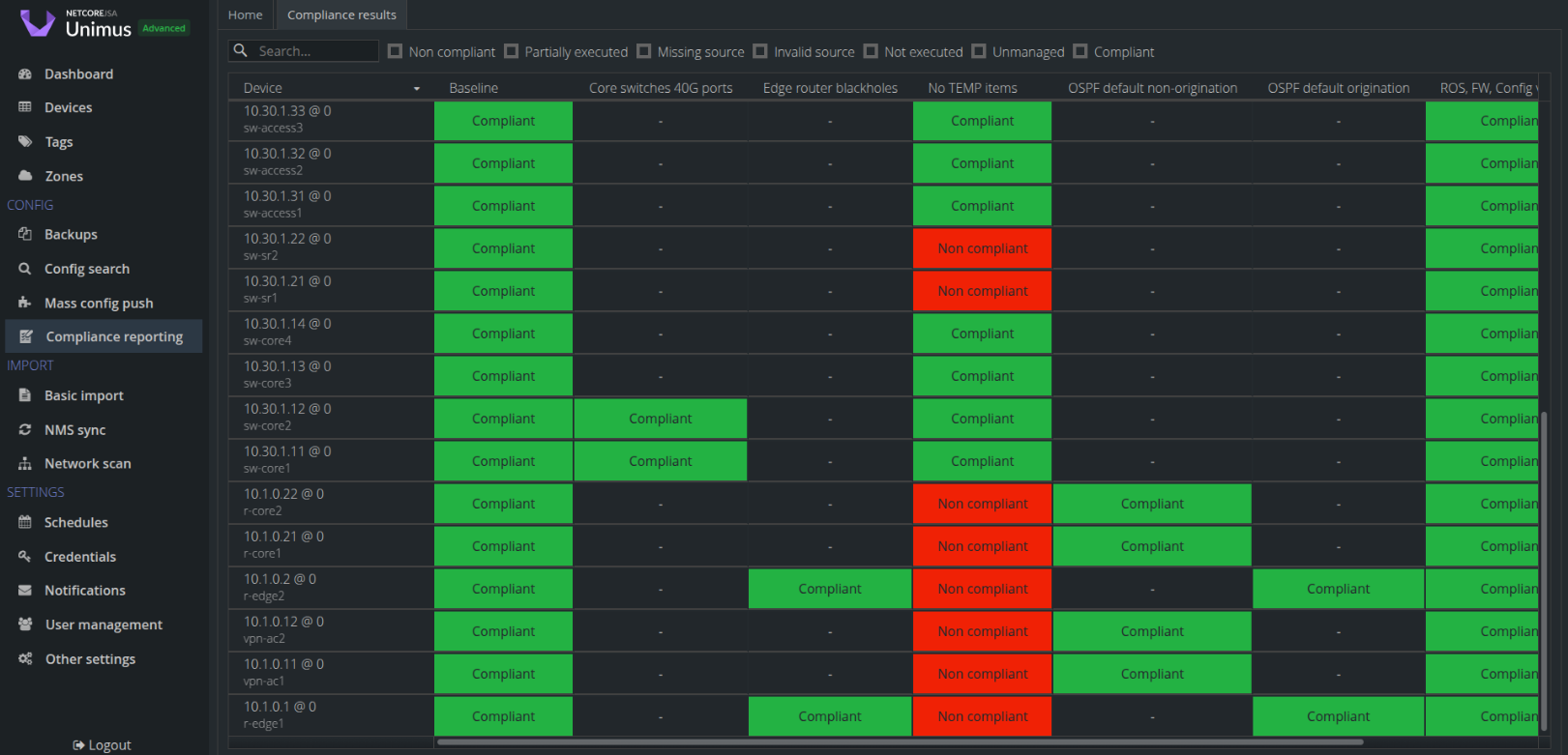
Device Preset Result – Shown for each device × preset combination in the Compliance Results screen (the compliance grid), or after opening a preset and selecting Show preset results.
Device Rule Result – After opening a preset and selecting Show preset results, click a device and then Show details to view all rule results for that device.
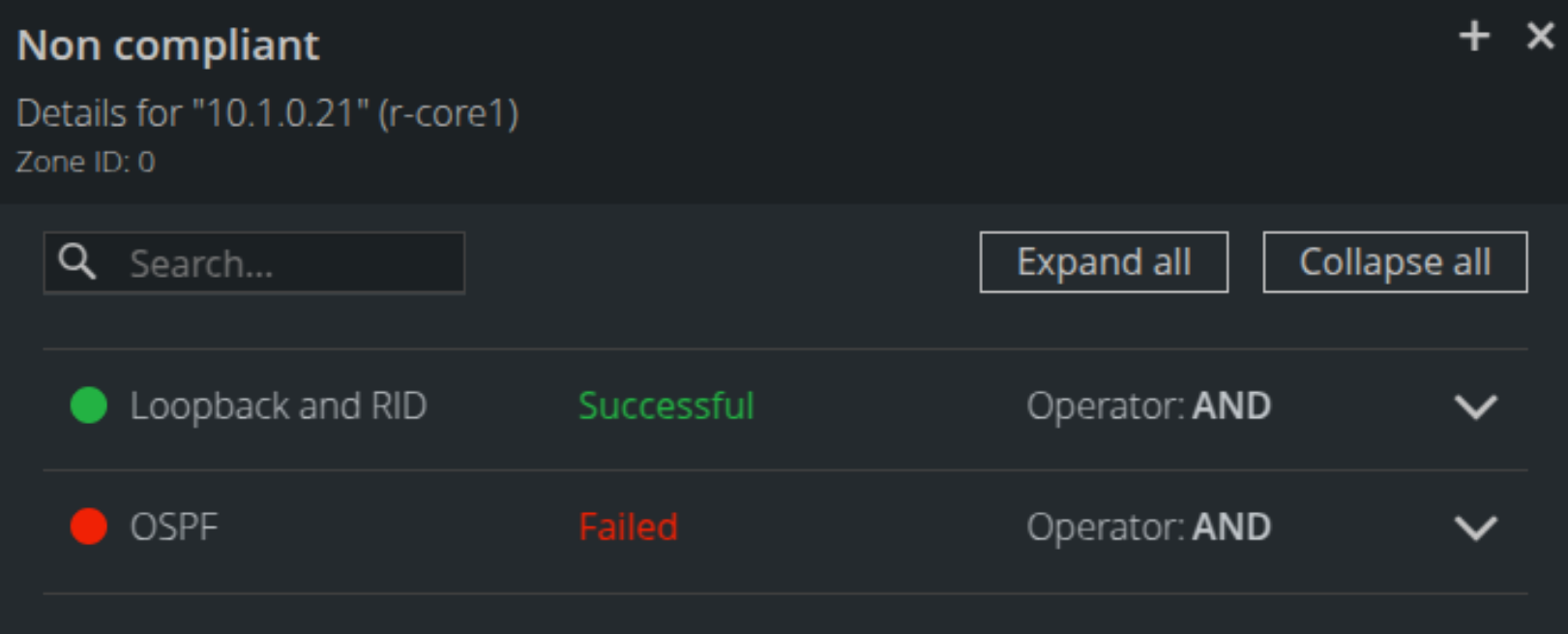
Device Condition Result – After opening a preset, choose Show preset results, select a device, click Show details, and use Expand all to display all condition results.
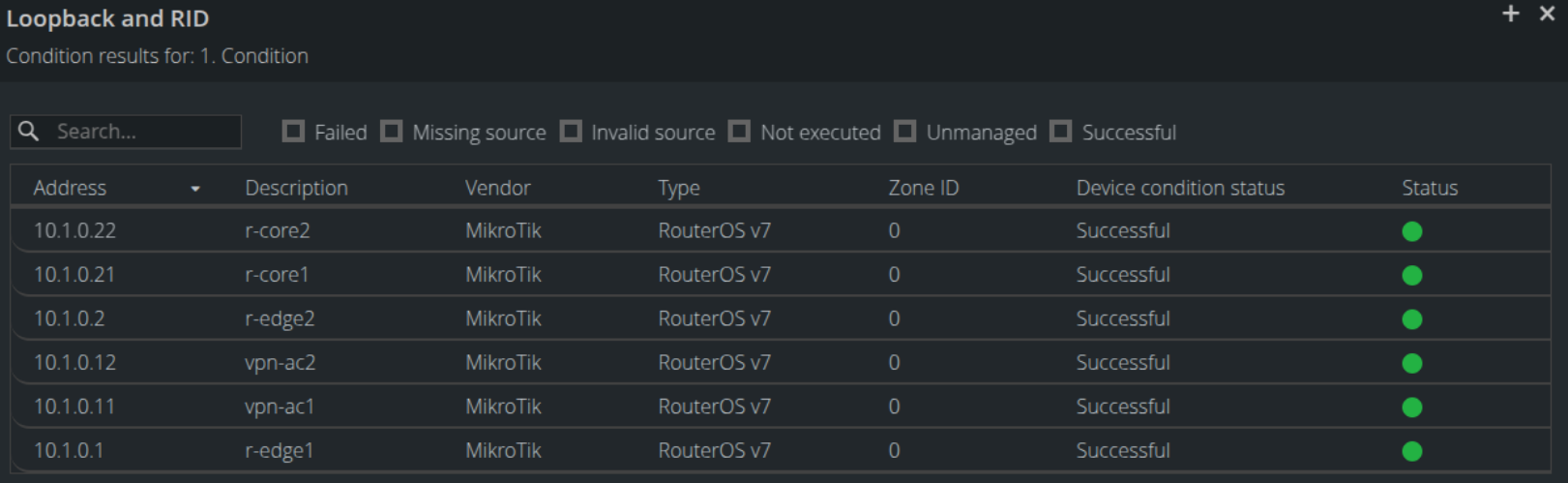
Alternatively, open a preset and use Show condition results for a specific condition.