Basics
The Compliance Reporting feature automatically validates whether network device configurations and/or their runtime states conform to operational policies. The Compliance Engine analyzes the latest configuration backups or Mass config push/pull outputs against user-defined rules and flags any deviations. Compliance checks in Unimus are organized into Compliance presets.
Compliance presets
Each Compliance preset consists of three core components:
Source – the dataset against which compliance is validated.
Targets – the devices validated by the preset.
Compliance Rules – the logic that defines compliance criteria.
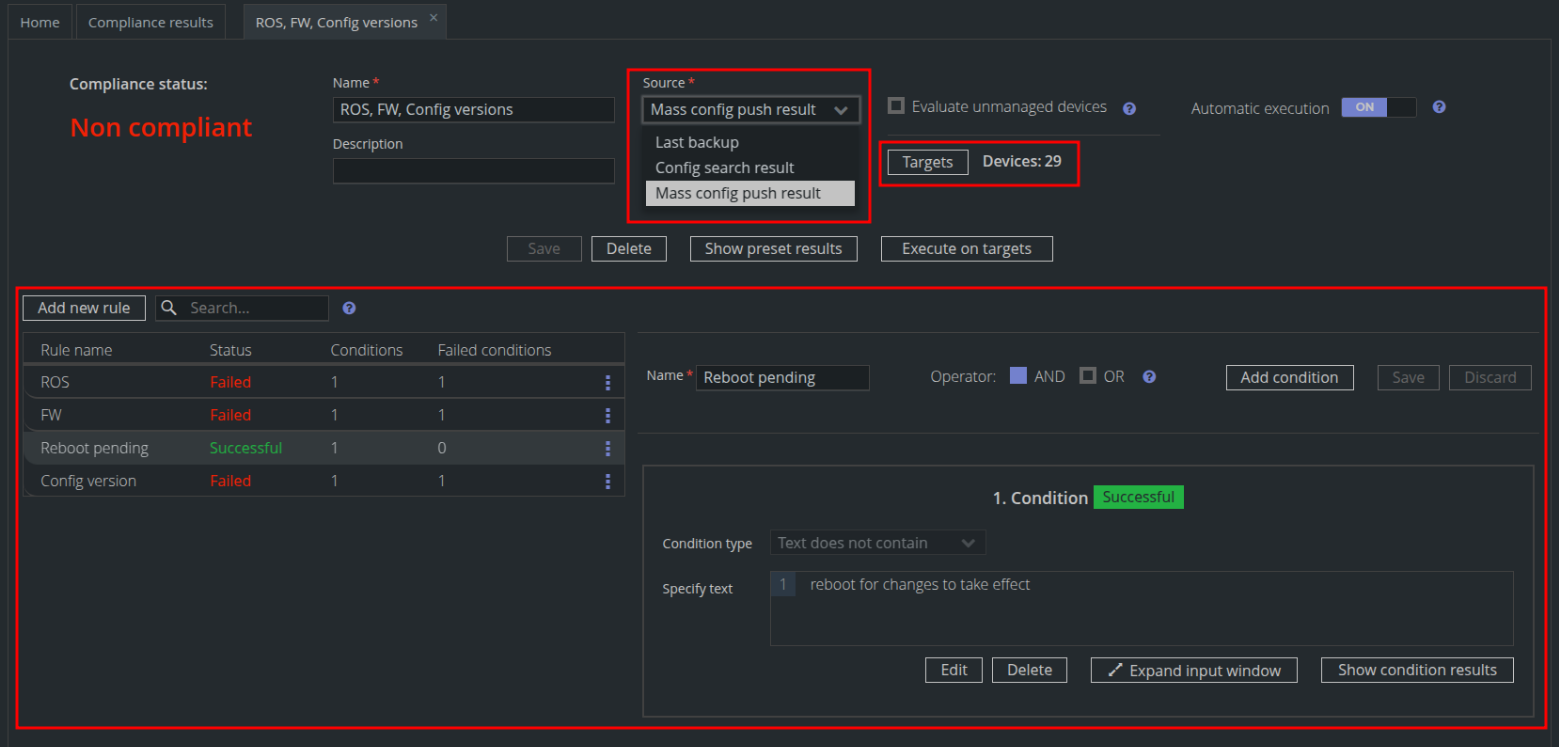
This structure allows you to define what is checked, how it is checked, and on which devices.
Compliance source
The Source determines which data the Compliance Engine validates against your rules. You can choose from:
Last Backup – validates against the most recent configuration backup of devices.
Config search result – validates the configuration of devices returned by a Saved search.
Mass config push result – validates device output produced by executing an MCP preset.
Compliance targets
Targets are the devices whose compliance state you want to monitor. The selected data source affects how the targets are determined.
When the source of a preset is set to “Last backup,” you can select devices individually or target groups of devices based on vendor, device type, or custom tags.
For Compliance presets where the source is set to “Config Search result,” the targeted devices are defined by the result of a Saved Search. The Saved Search runs against a group of devices, and only devices whose configurations match the search criteria are targeted.
For presets where the source is set to “Mass config push result,” the targeted devices are defined by the targets of the selected MCP preset.
By default, unmanaged devices are excluded from validation. To include them, enable the Evaluate unmanaged devices toggle within the preset.
Note: Only one Saved Search or one MCP preset can be selected per Compliance preset. Only Saved Searches performed on the latest device configurations are considered a valid source for a Compliance preset.
Compliance rules and conditions
Compliance presets let you organize and apply your custom compliance rules across selected devices. Each preset contains one or more rules, and each rule contains one or more conditions.
Unimus supports creating complex rules using:
Text Matching (“text contains” or “text does not contain”)
Regular Expressions for advanced matching
Line Anchors (e.g. “line starts with”, “line ends with”, etc.)
Multiple Conditions per Rule, evaluated using a single logical operator (AND/OR) selected by the user (either all device condition results must match for a device within a rule, or any of them)
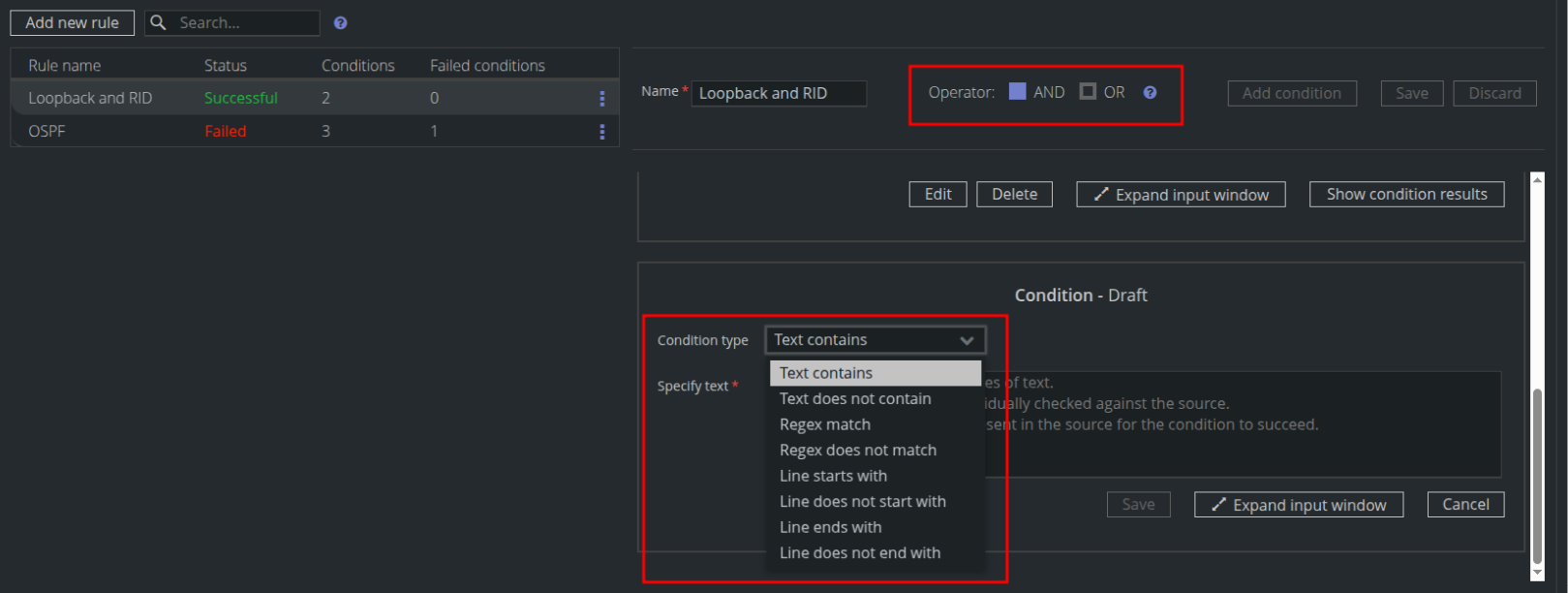
A rule can be named for quick identification or context, and it can be disabled to be ignored during the execution of the Compliance preset.
Condition evaluation logic
Each line within a Condition is evaluated individually. This allows you to paste multiple commands into a single Condition, with each line evaluated individually against the target device sources. The most basic use case is validating a device’s configuration against a "Golden Config"—you can paste the entire Golden Config into one Condition, and Unimus will check each line against the device.
The selected operator (AND/OR) determines how multiple Conditions are evaluated. For example, if multiple versions of a Golden Config are acceptable, you can create separate Conditions for each version, set the Operator to OR, and paste each configuration into its own Condition. Unimus will then validate devices against all acceptable configurations.
Compliance preset execution
By default, Compliance presets are executed manually by clicking Execute on targets.
For continuous compliance monitoring, Unimus supports Automatic Preset Execution. When enabled (by toggling “Automatic execution” within a preset) Unimus automatically validates new sources for all targeted devices as soon as they are created. This keeps compliance results up to date without requiring manual execution.
Compliance evaluation levels
The Compliance engine evaluates compliance across several levels. Each evaluation level produces its own Compliance result. For the full evaluation logic, see the Compliance Evaluation Logic article.
Evaluation level result | What It Represents | Scope |
|---|---|---|
Preset Status | Result of evaluating an entire Compliance preset across all its target devices. | All devices targeted, one preset |
Rule Status | Result of evaluating one Compliance rule across all target devices in a preset. | All targeted devices, one rule |
Condition Status | Result of evaluating one Compliance condition across all target devices in a preset. | All targeted devices, one condition |
Device Compliance Status | Overall compliance status of a device across all Compliance presets. | One device, all presets |
Device Preset Result | Evaluation of all rules within a preset for one specific device. | One device, one preset |
Device Rule Result | Evaluation of all conditions in a rule for one specific device. | One device, one rule |
Device Condition Result | Evaluation of a single condition on a single device. | One device, one condition |
Viewing Compliance results
Preset Status – Visible on the Compliance Home screen for each preset. Also shown in the preset detail view after opening a preset.
Rule Status – After opening a preset from the Compliance Home, displayed in the table of rules.
Condition Status – After opening a preset, displayed in the list of conditions next to each condition.
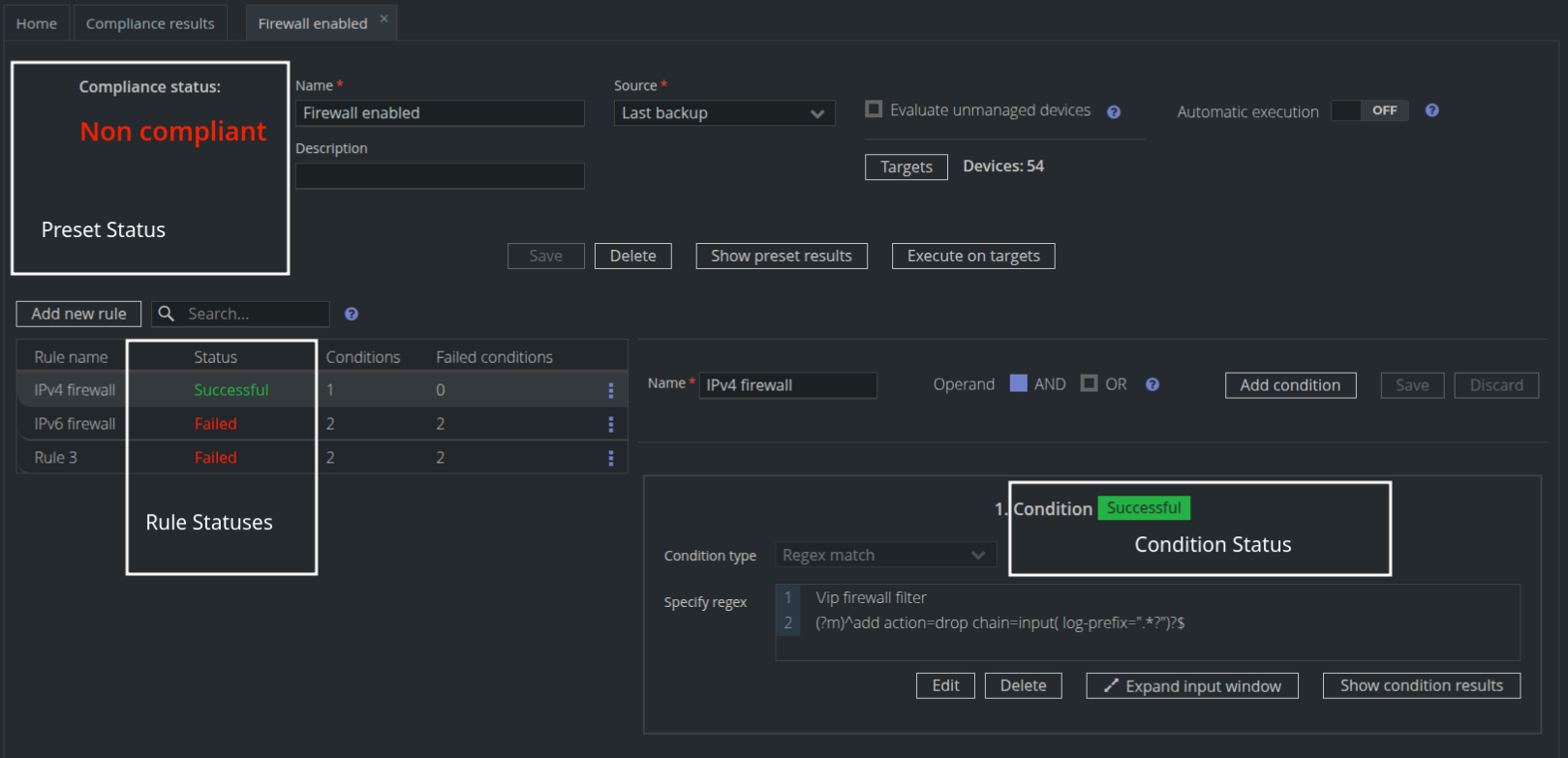
Device Compliance Status – Shown in the Compliance column (Compliance status indicator) for each device in the Devices list.
The device compliance status indicator is color-coded for fast identification:
Green: device is fully compliant
Red: device is non-compliant
Yellow: source dataset is missing or invalid
Grey: device is unmanaged or hasn’t been validated yet

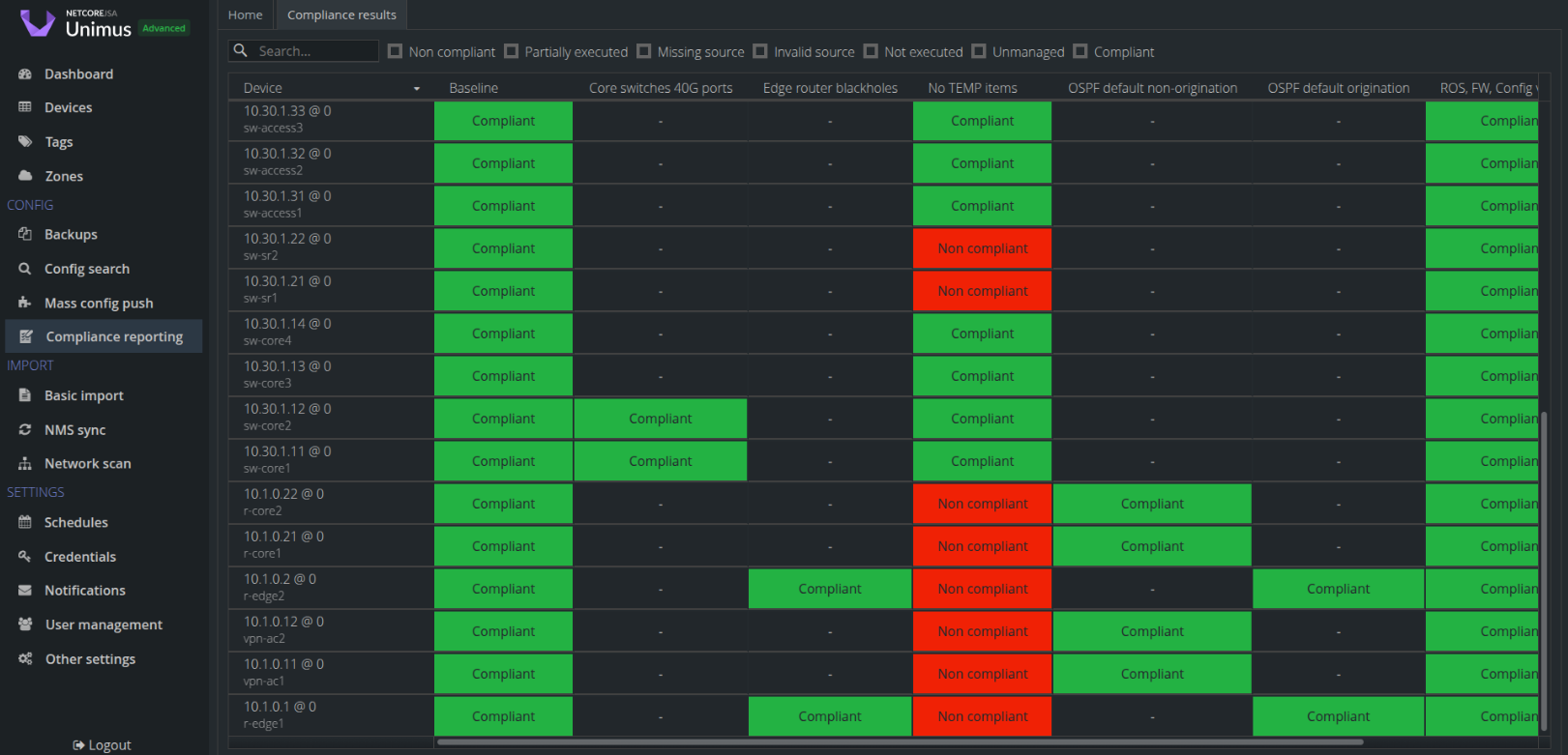
Device Preset Result – Shown for each device × preset combination in the Compliance Results screen (the compliance grid), or after opening a preset and selecting Show preset results.
Device Rule Result – After opening a preset and selecting Show preset results, click a device and then Show details to view all rule results for that device.
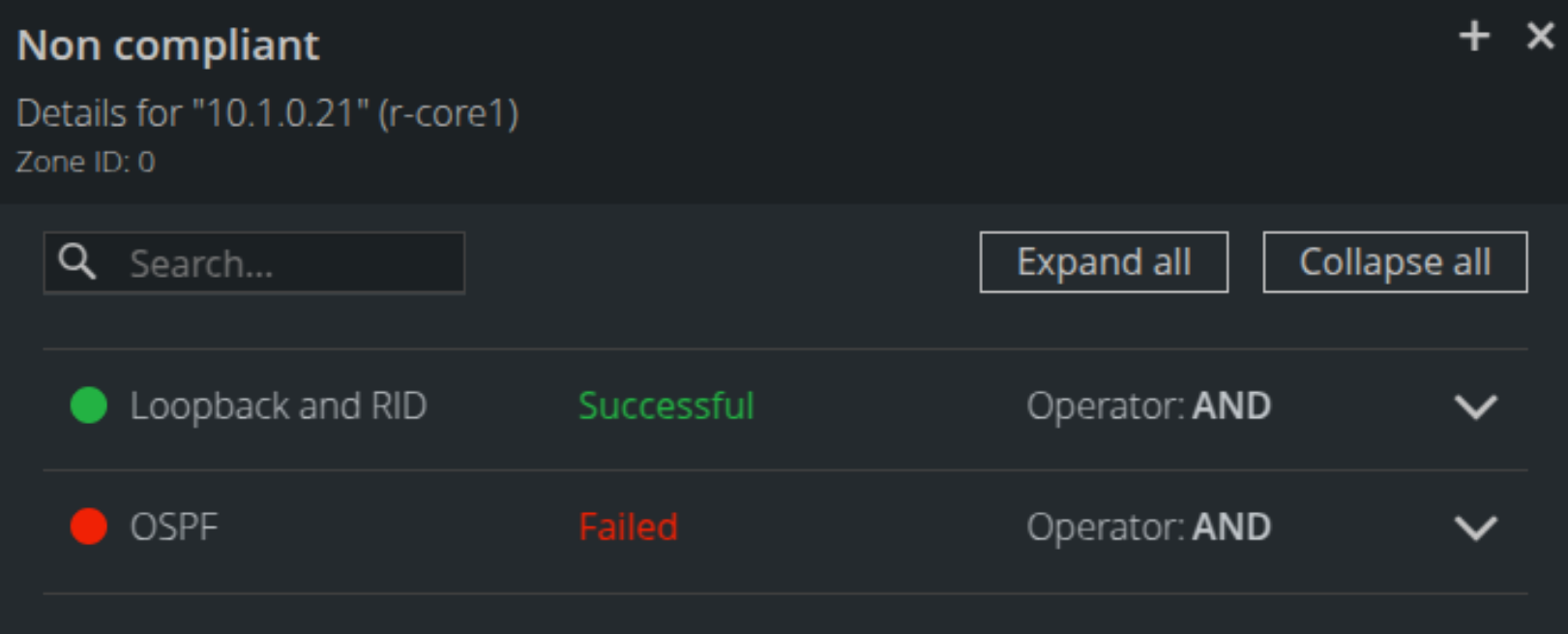
Device Condition Result – After opening a preset, choose Show preset results, select a device, click Show details, and use Expand all to display all condition results.
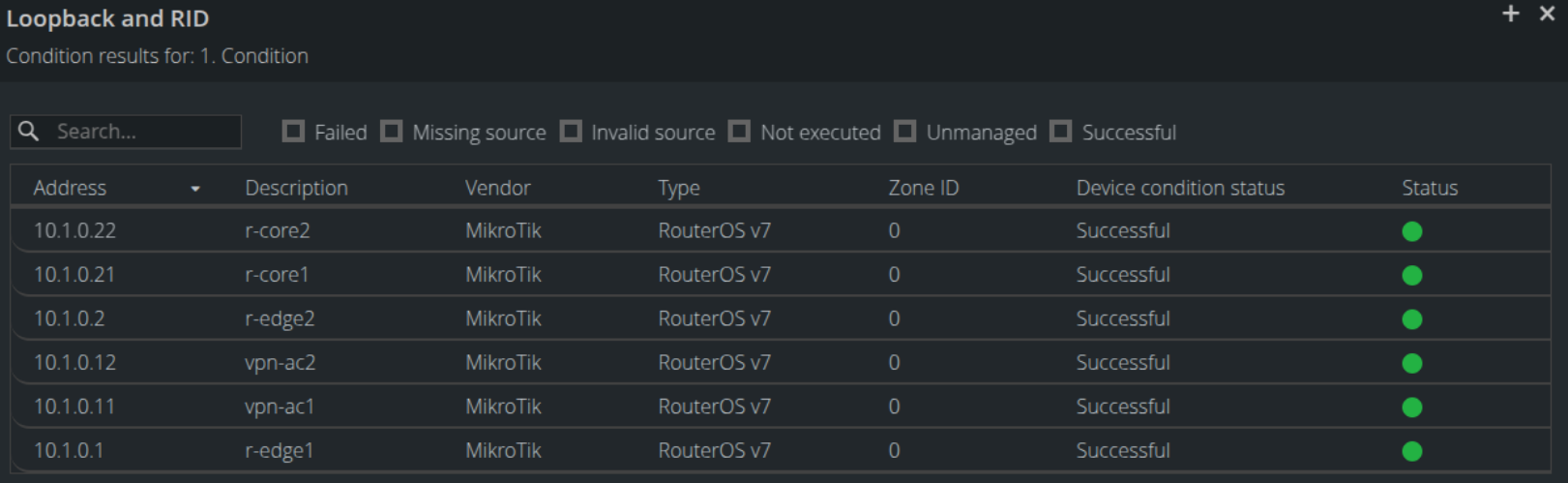
Alternatively, open a preset and use Show condition results for a specific condition.